
Record360 can push notifications to your system whenever an event happens in ours — a new inspection is created, or a task is completed. Subscribing to a webhook lets your integration use an event-based architecture, which is typically simpler and cheaper than polling our API on a schedule. You don't need to constantly check for updates; sit back, relax, and let the data come to you.
Previously, webhooks were configured on your behalf by Record360 support. You can now create and manage webhook endpoints yourself, directly from the Dashboard, through the new Integration Marketplace and its Custom Integrations management experience.
This guide walks through creating a webhook endpoint in the Dashboard. For the full event and payload reference, see Subscribing to Inspection or Task Events.
Before you begin
Before creating a webhook, stand up an endpoint on your side that Record360 can call. Your endpoint should:
- Accept HTTPS
POSTrequests with aContent-Typeofapplication/json. - Present a valid SSL certificate.
- Return a timely
2xxresponse to acknowledge receipt. - Handle high volume gracefully. Inspection volumes are based on your organization's activity and can be large, so enforce a rate limit and return a correct
429response if you need Record360 to back off. - Tolerate new schemas. Different workflows produce different checklist fields, and new fields may be added over time. Webhooks follow the same backwards compatibility and versioning policies as the Integration API, so build your consumer to ignore new or unknown fields rather than break on them.
Open the Custom Integrations management page
- Sign in to the Record360 Dashboard.
- Select Integrations in the main menu.
- Under System integrations, select the Custom Integrations card. The card shows your current number of API keys and webhooks, along with recent activity.
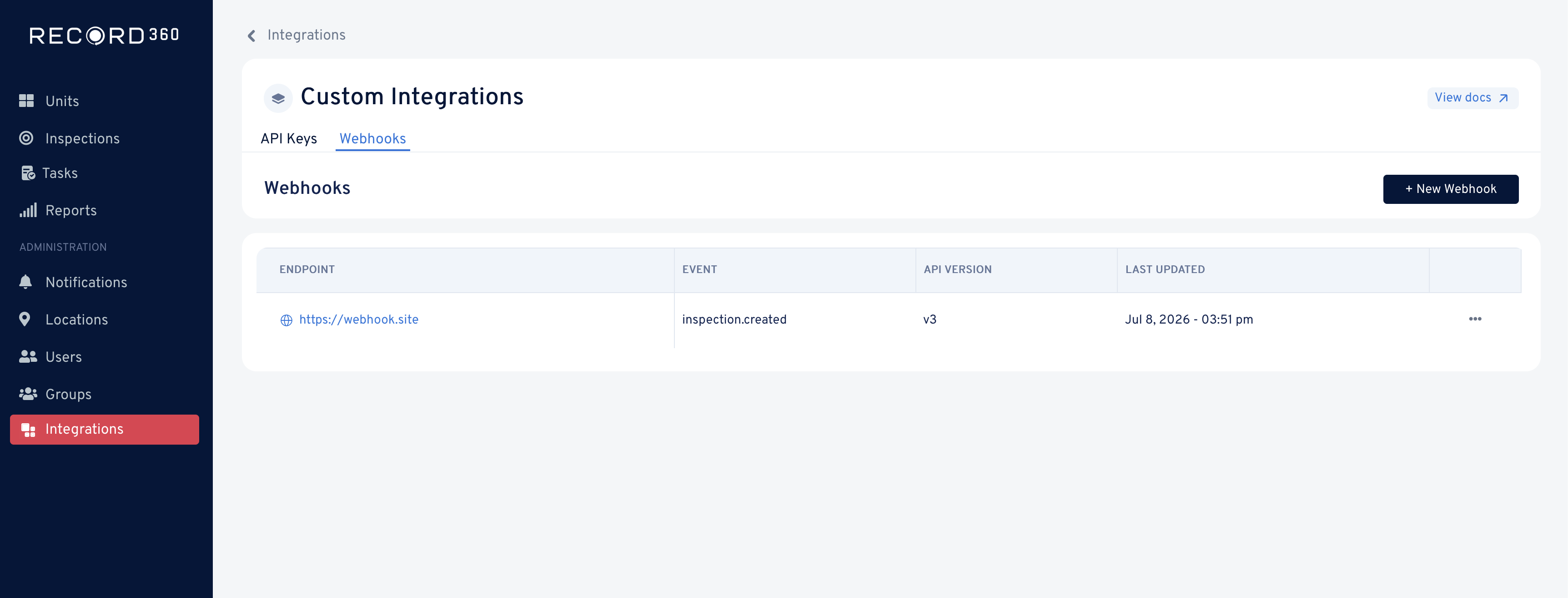
- On the Custom Integrations page, select the Webhooks tab. (API Keys are managed from the neighboring API Keys tab.)
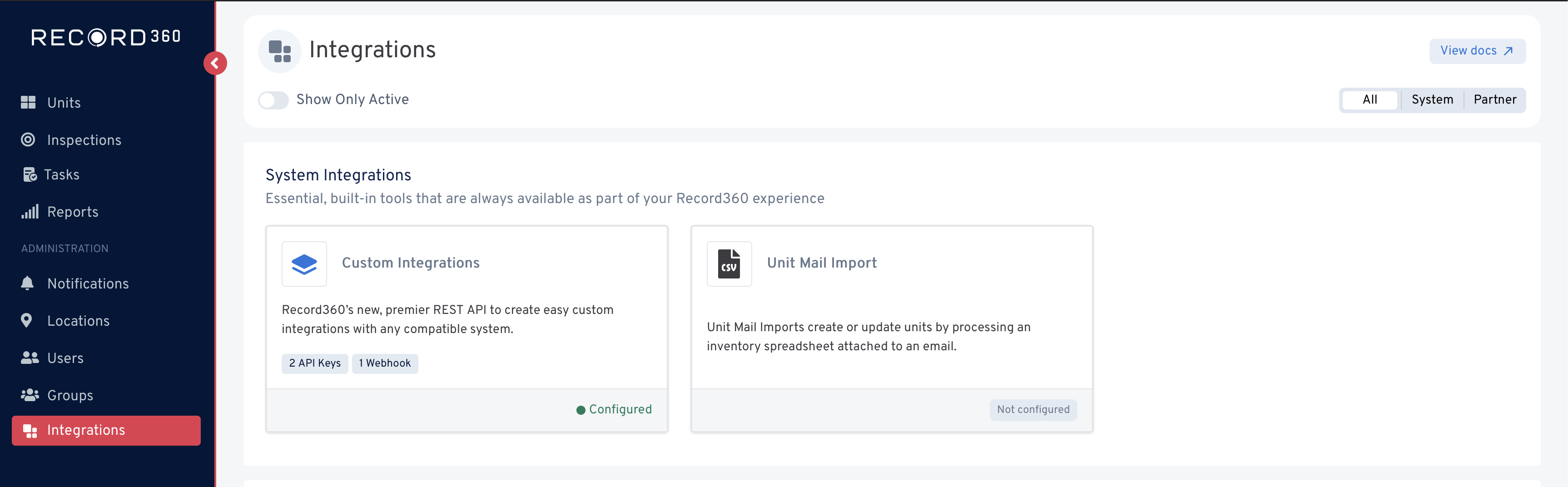
Where did the Integration API page go?The old Integration Center and its Integration API / API Keys page have been consolidated into the Integration Marketplace. API key management now lives under Custom Integrations → API Keys and works exactly as before — only the location and design have changed.
Create a webhook
-
On the Webhooks tab, select New Webhook in the upper right.
-
Complete the fields in the create modal (see Webhook fields below).
-
Select Create Webhook.
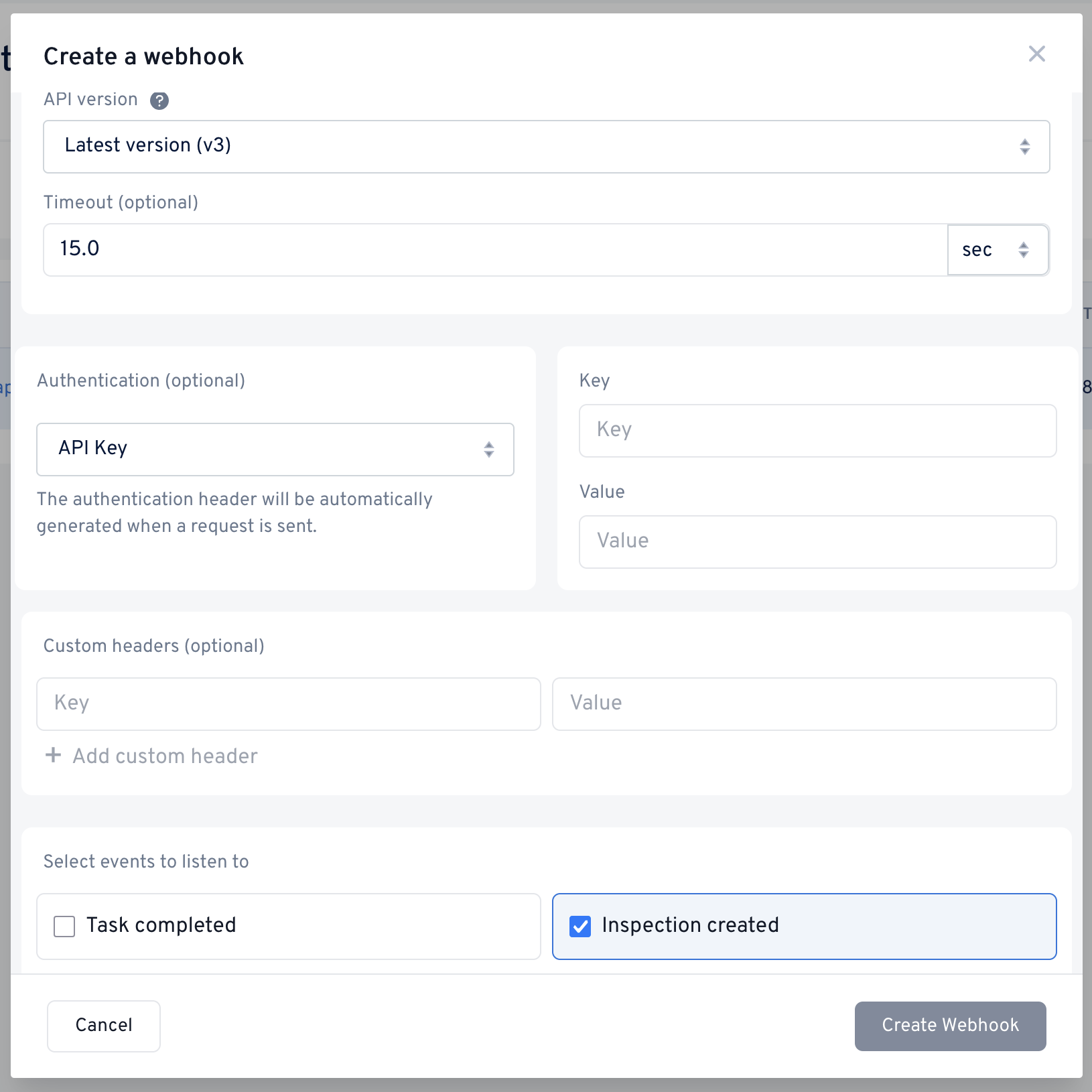
Your new endpoint appears immediately in the webhooks table and begins receiving event notifications for the event you subscribed to.
Webhook fields
| Field | Required | Description |
|---|---|---|
| URL | Yes | The HTTPS URL that Record360 will send the POST request to. |
| Event type | Yes | The event this endpoint subscribes to: Inspection created or Task completed. See Subscribing to Inspection or Task Events for more information. |
| API Version | Yes | The payload format Record360 sends. Choose Latest Version (V3) — the default — for new integrations. V1 is offered only for legacy compatibility. |
| Authentication | No | How Record360 authenticates to your endpoint. Options: None, Basic, Bearer token, or API Key. See Authentication options. |
| Custom Headers | No | Additional key-value header pairs sent with every request (for example, an account identifier). Up to 10 custom headers. |
One endpoint per eventEach webhook subscribes to a single event type, and the event type is fixed for the life of the endpoint. To receive both Inspection created and Task completed notifications, create two webhooks — even if they point to the same URL.
Authentication options & custom headers
Record360 can authenticate to your endpoint using the scheme you configure. To make adding authentication easy, we offer a few preset schemas in addition to any custom headers.
- None — No authentication header is added.
- Basic — Enter a username and password. Record360 base64-encodes them into the
Authorizationheader. - Bearer token — Enter a token. Record360 sends it as
Authorization: Bearer <token>. (no need to addBearer.) - API Key — Enter a custom key-value pair, sent as a header.
You can combine any authentication option with additional Custom Headers to match your endpoint's requirements.
Edit a webhook
Select Edit from a webhook's three-dot menu to update it. The edit modal exposes the same fields as creation, with two exceptions:
- Event type cannot be changed. The subscribed event is inherent to the endpoint. To subscribe to a different event, create a new webhook.
- Existing authentication and custom-header values are hidden for security. Re-enter a value only if you want to change it.
Delete a webhook
Company Admins can delete a webhook from its three-dot menu. You'll be asked to confirm before the endpoint is removed.
Deleting breaks deliveryOnce a webhook is deleted, Record360 stops sending events to that endpoint immediately. If the endpoint is still in use, recreate it or your integration will stop receiving data.
Need help?
Have questions or run into trouble? See Need help? or reach out to Record360 support.